Intune MDM
Wipe Device
A recovery workflow for wiping and restoring an Apple iPad from a Windows PC when the device is stuck, unresponsive, or unable to complete enrollment normally.
When to Use This
- The iPad is stuck during setup.
- MDM enrollment fails and normal troubleshooting does not fix it.
- The device is unresponsive.
- A standard reset does not work.
This process fully erases the device, so it should be treated as a last-resort recovery step.
Step 1: Install Apple Devices on the Windows PC
On the Windows computer, install the Apple Devices app from the Microsoft Store. This replaces the older iTunes-based workflow for device recovery on Windows.
Step 2: Power Off the iPad
Make sure the iPad is fully powered down before starting recovery mode. Beginning from a clean powered-off state helps the recovery sequence work more reliably.
Step 3: Connect the USB Cable to the Computer
Plug the USB cable into the Windows computer first, but do not connect it to the iPad yet. The cable gets connected to the iPad during the recovery mode step.
Step 4: Put the iPad Into Recovery Mode
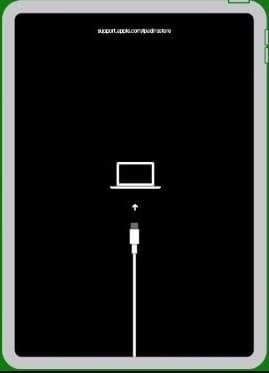
Hold the power button on the iPad while connecting the USB cable to the device. Keep holding the button as the Apple logo appears, and continue holding until the recovery screen appears with the computer-and-cable icon.
Step 5: Choose Restore in Apple Devices
Once the iPad is detected in recovery mode, the Apple Devices app prompts you to update or restore the device. Choose Restore to move forward with the recovery.

Step 6: Select Restore and Update
In the confirmation dialog, select Restore and Update. This erases the iPad, installs the latest iPadOS version, and prepares the device for a fresh setup experience.

Step 7: Let the Recovery Finish
Allow the restore process to complete without disconnecting the device. The iPad shows a loading state while the recovery is in progress and eventually reboots when the restore is finished.

After Recovery
After the iPad reboots, go through the standard setup flow again. If the device is assigned in Apple Business Manager and managed by Intune, it should re-enroll during setup.
Managed Environment Checks
- Confirm the device record in Intune is not stuck in a failed or pending wipe state.
- Verify the device is still assigned correctly in Apple Business Manager.
- Allow enough time for automated enrollment to complete during setup.