Intune MDM
Configuration Profiles
Configuration profiles control what settings, restrictions, and behaviors are available on managed devices. This example walks through creating an iOS/iPadOS device restrictions profile in Microsoft Intune.
Before You Start
- Confirm the target Apple devices are already enrolled or ready for enrollment.
- Know whether you want to use a settings catalog or a template-based profile.
- Decide which restrictions and behaviors should be required for the device group.
- Have the assignment group selected before you create the profile.
Step 1: Open Configuration Profiles
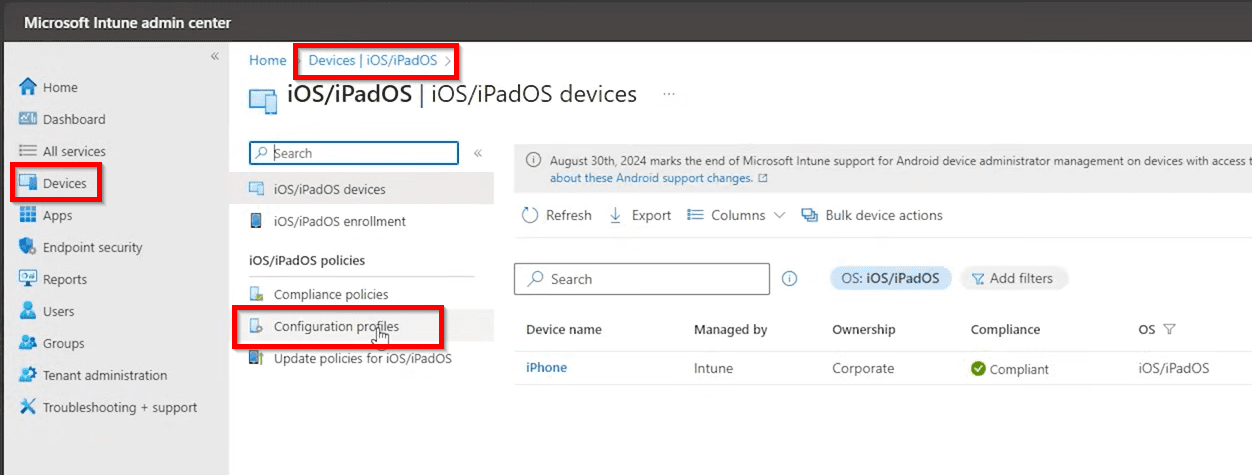
In the Intune admin center, go to Devices, then iOS/iPadOS, and then Configuration Profiles.
Step 2: Create a New Profile
Select Create and start a new profile for the iOS/iPadOS platform. On the right-side pane, open the Profile type menu to choose how the profile will be built.
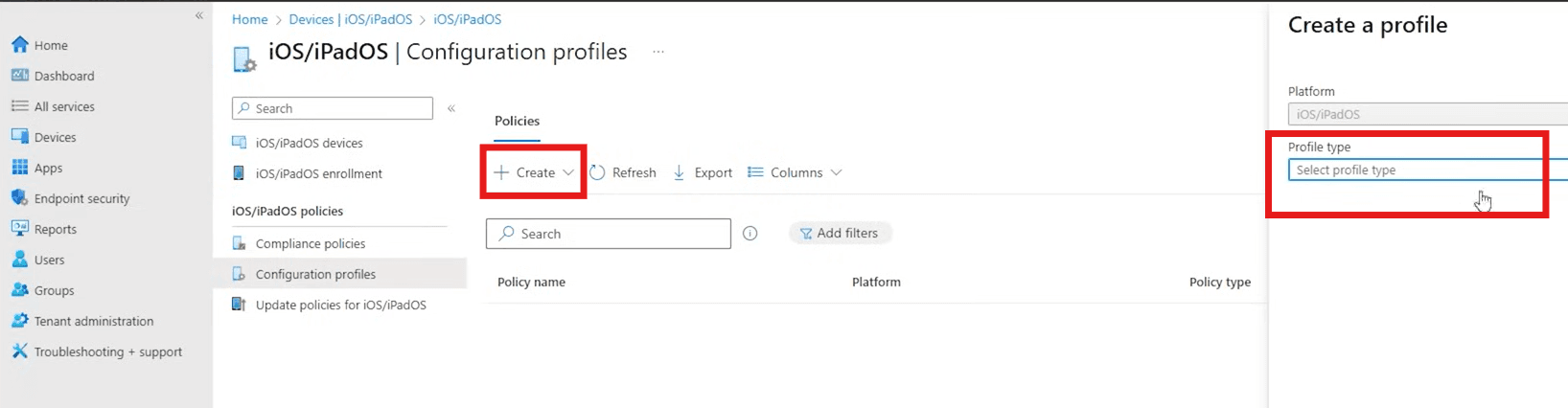
At this point, you can choose between Settings catalog and Templates.
- Settings catalog: a more granular list of individual settings.
- Templates: a grouped collection of settings organized by function.
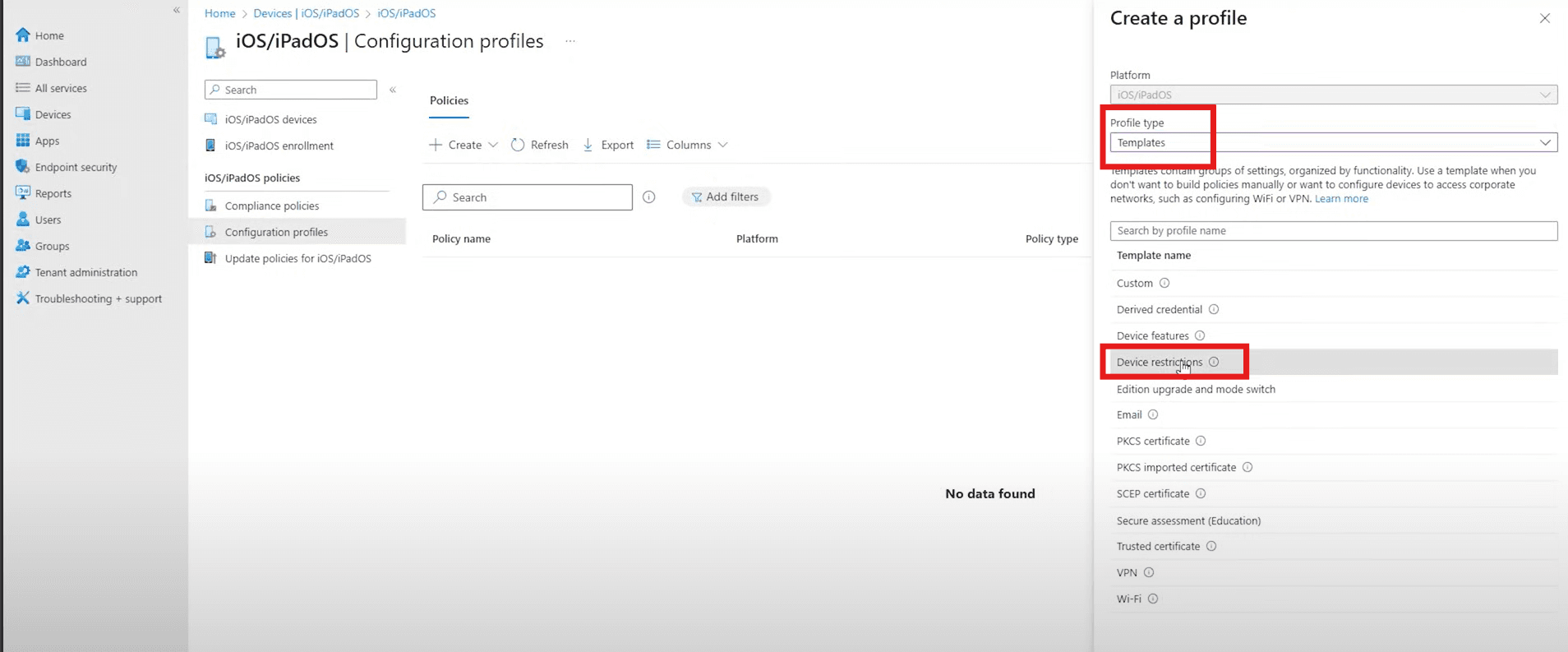
For this example, select Templates.
Step 3: Choose the Template
Choose Templates, then select Device restrictions as the template name.
Step 4: Complete the Basics Tab
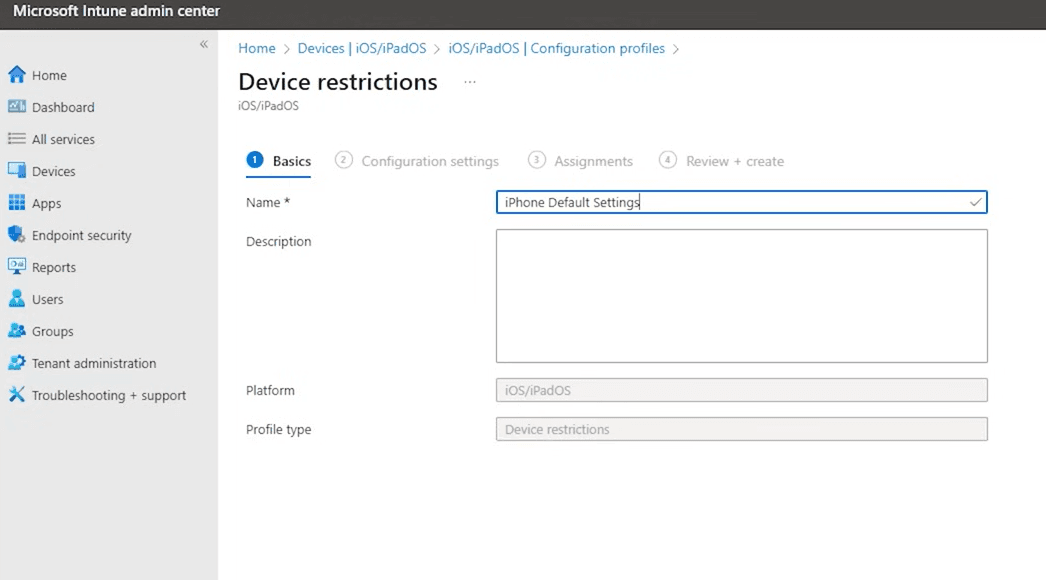
Enter the name and description on the Basics tab. Use a naming standard that clearly identifies what the profile is doing, such as a default settings or restrictions baseline for iPads or iPhones.
Step 5: Configure the Settings
On the Configuration settings tab, review the available categories and expand the areas you want to manage. This is where you build the actual restrictions for the profile, including app behavior, cloud and storage controls, password requirements, kiosk settings, locked screen experience, and wireless options.
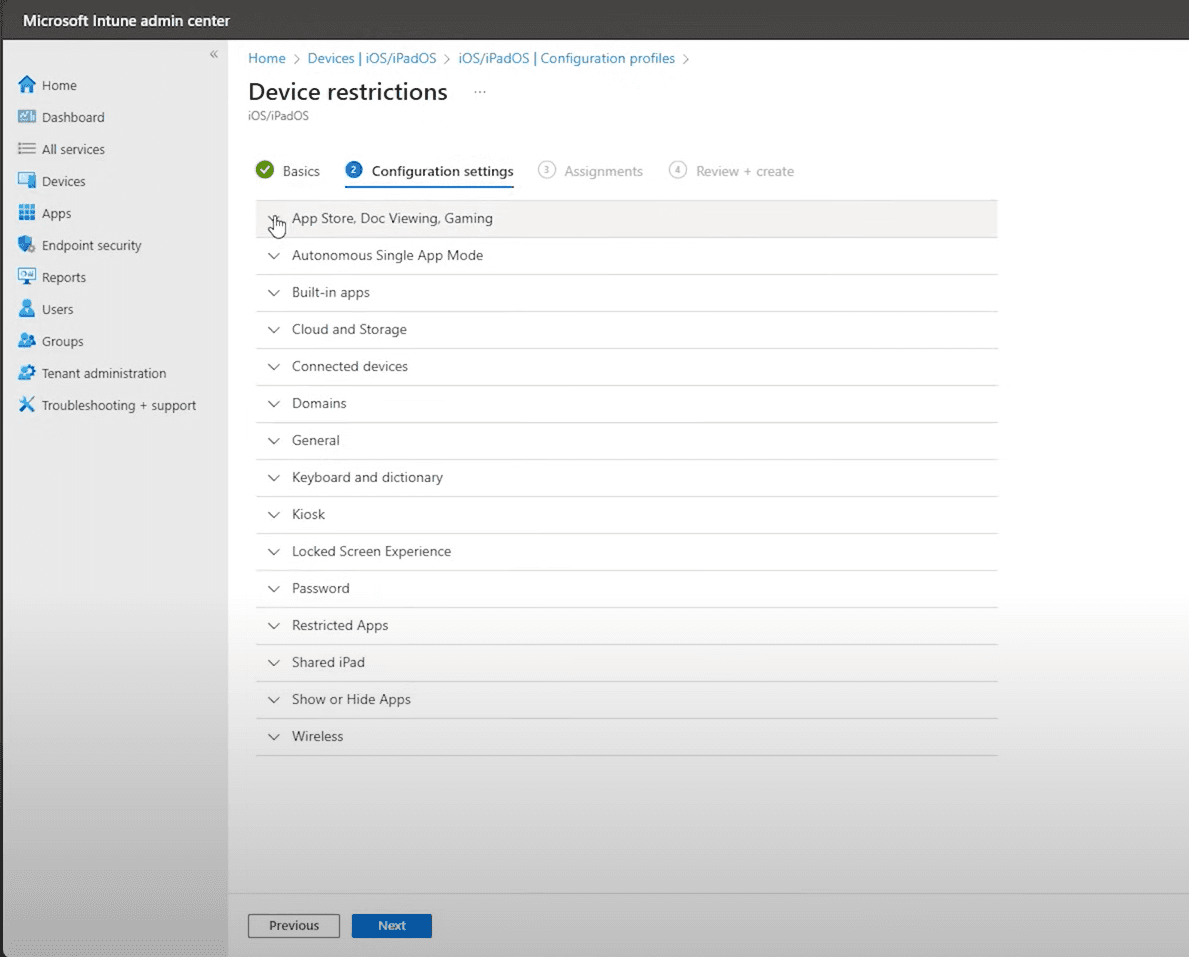
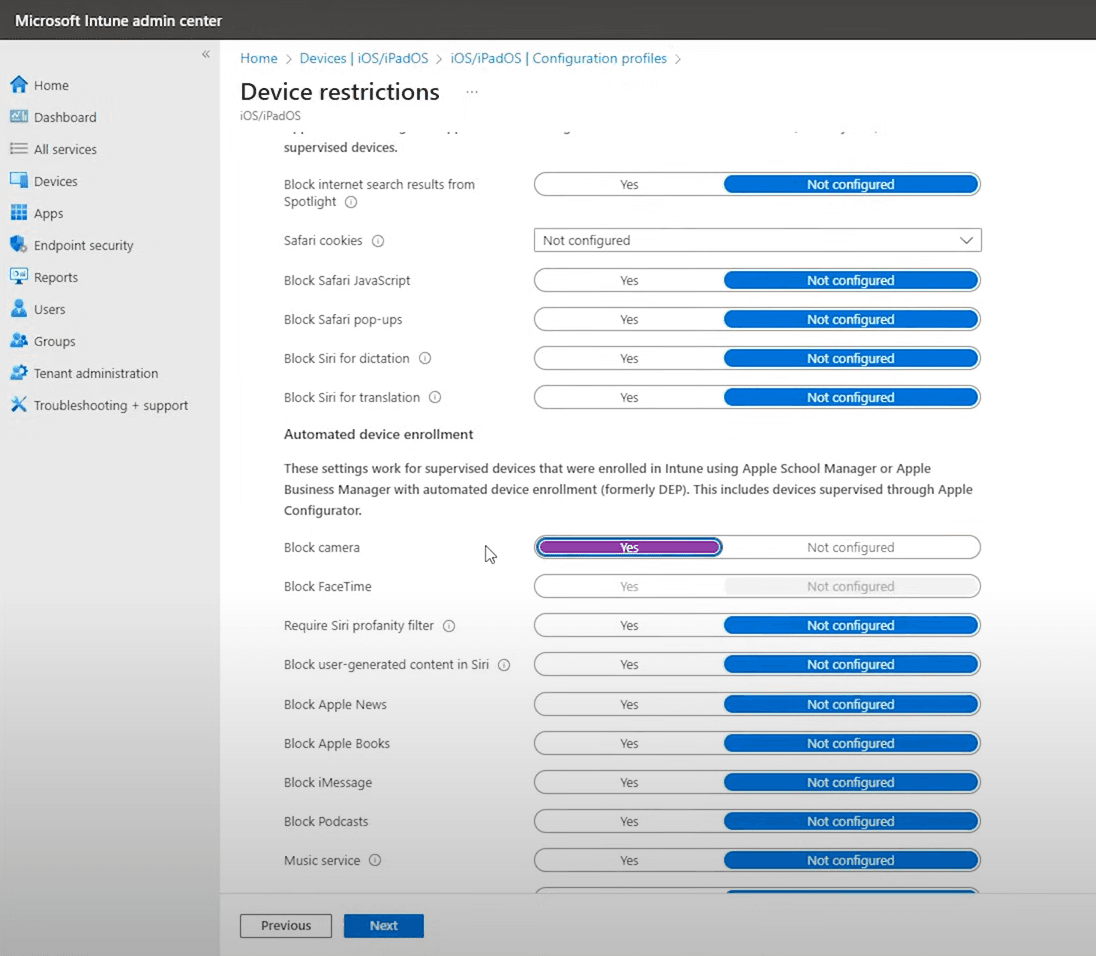
When you expand a category, set each option to match the behavior you want on the device. In this example, individual restriction settings are being configured directly within the template.
Step 6: Assign the Profile
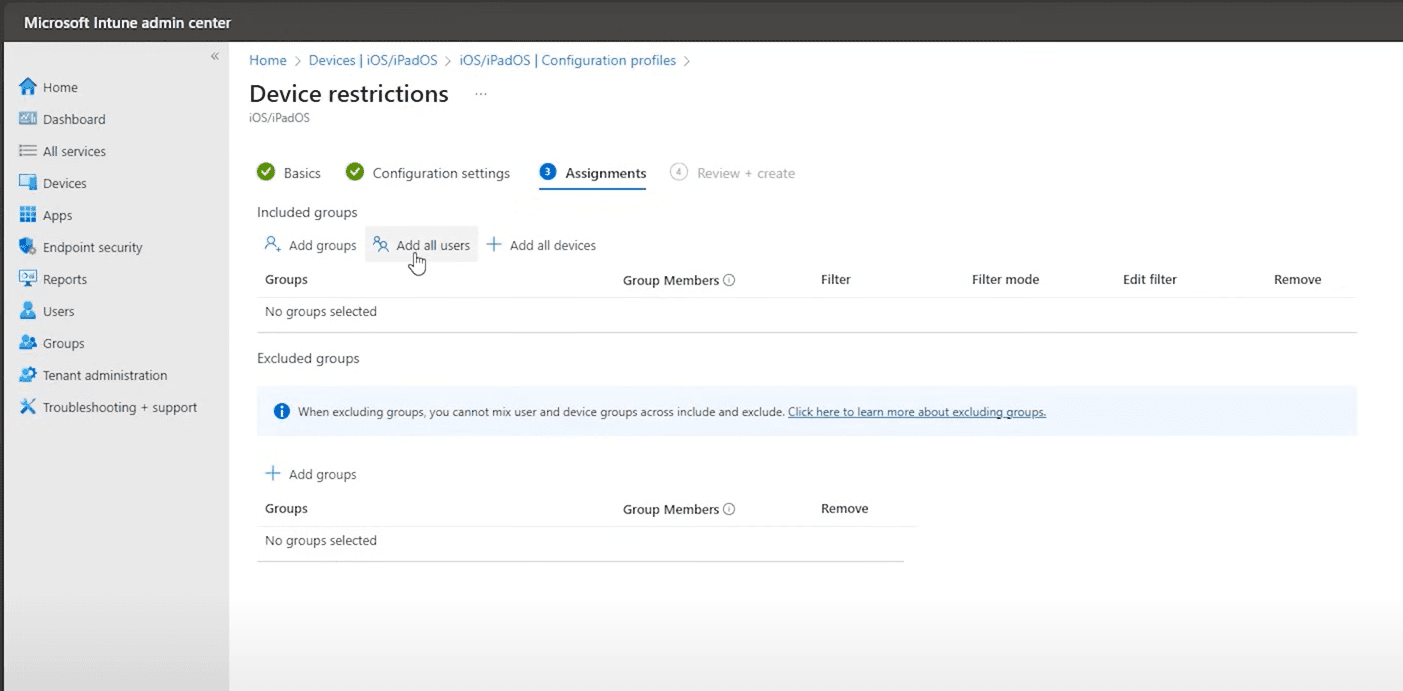
Move to the Assignments tab and choose how the profile should be targeted. You can add groups, include all users, or include all devices depending on your rollout plan. Review both included and excluded groups before continuing.
Step 7: Review and Create
Review the completed settings, verify the assignments, and create the profile. After deployment, check the device status and confirm the restrictions apply as expected on the targeted iOS/iPadOS devices.