Intune MDM
Adding Apps (VPP)
Steps for adding apps through Apple Business Manager, locating the synced VPP app in Intune, and assigning it to the correct iPad group for deployment.
Overview
- Add the app through Apple Business Manager so it appears in Intune under iOS Volume Purchase Program apps.
- Assign the app to the necessary iPad group in Intune.
- Add the app to the iPad group home screen layout configuration if needed for your deployment.
Step 1: Add the App in Apple Business Manager
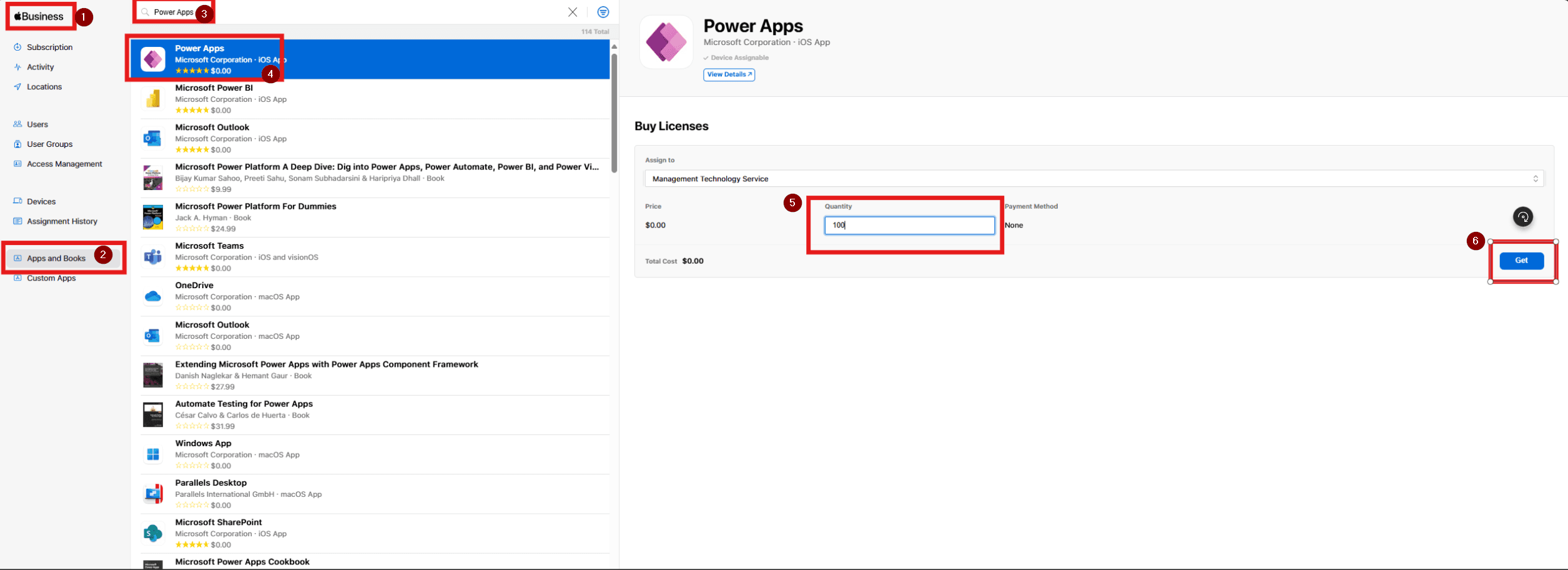
In Apple Business Manager, go to Apps and Books, search for the app you want, open it, enter the quantity you need, and select Get. This is the step that makes the app available for Intune to sync through your VPP connection.
Step 2: Find the Synced VPP App in Intune
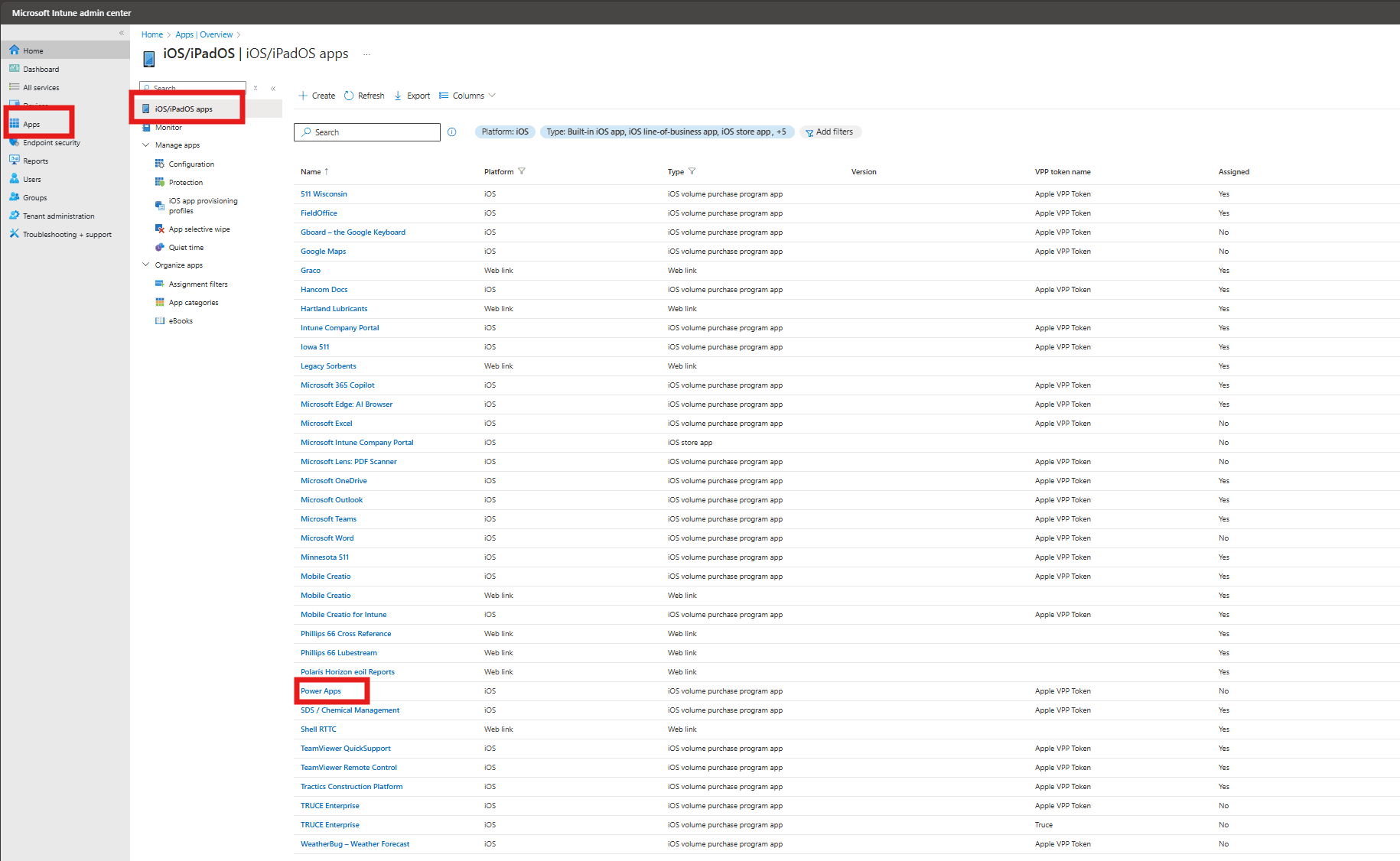
In Intune, go to Apps, then iOS/iPadOS, and locate the app you just added. It should appear in the app list as an iOS volume purchase program app after the sync completes.
If the app does not show up right away, give the VPP sync a few minutes and verify the Apple VPP token is healthy in Intune.
Step 3: Open Properties and Update Assignments
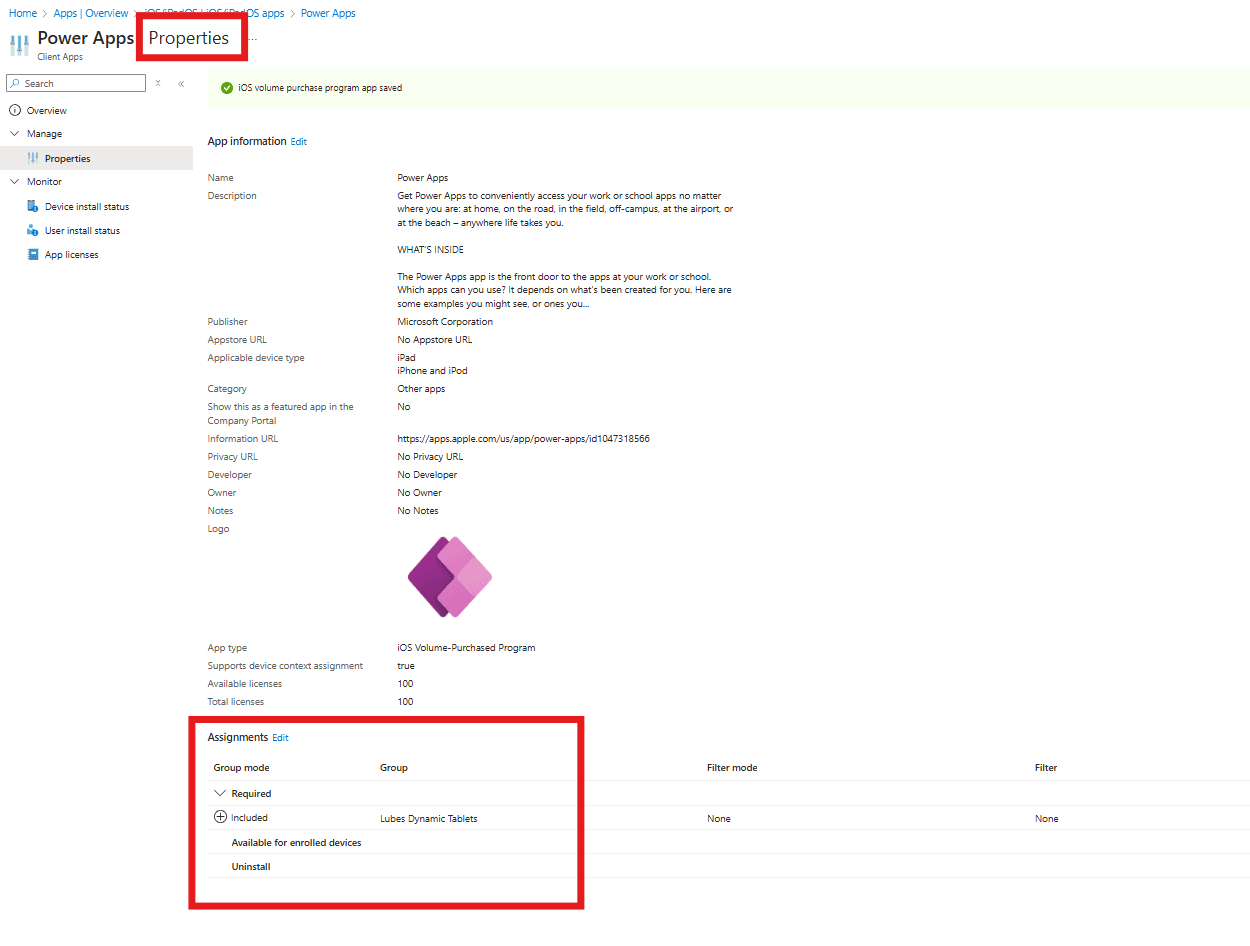
Open the app in Intune, go to Properties, and update the assignment so the app targets the tablet group you want to deploy to. Review whether the app should be required, available for enrolled devices, or excluded from any groups.
Helpful Notes
- Make sure the app is assigned to the same iPad group used by the rest of the device setup workflow.
- If you use a home screen layout profile, add the app there as well so it appears where users expect it.
- Double-check whether the app supports device assignment, since that affects how the license is consumed.
- Test the deployment on one device first before broad rollout.