Intune
Create a USB Block Policy
This method uses Intune to manage Defender for Endpoint device control settings and create a policy that blocks read and write access to USB storage devices.
Use Case
IT admins looking to use ASR (Attack Surface Reduction) device control to enforce a stronger removable storage policy across Windows devices.
Step 1: Open the Intune Admin Center
Sign in to the Intune admin center and navigate to the policy area where Endpoint Security rules are managed.
Step 2: Go to Attack Surface Reduction
Open Endpoint security, then select Attack surface reduction.
Step 3: Create a New Device Control Policy
Select Create Policy, then choose the following options:
- Platform: Windows 10, Windows 11, and Windows Server
- Profile: Device Control
After selecting those values, click Create.
Step 4: Complete the Basics Tab
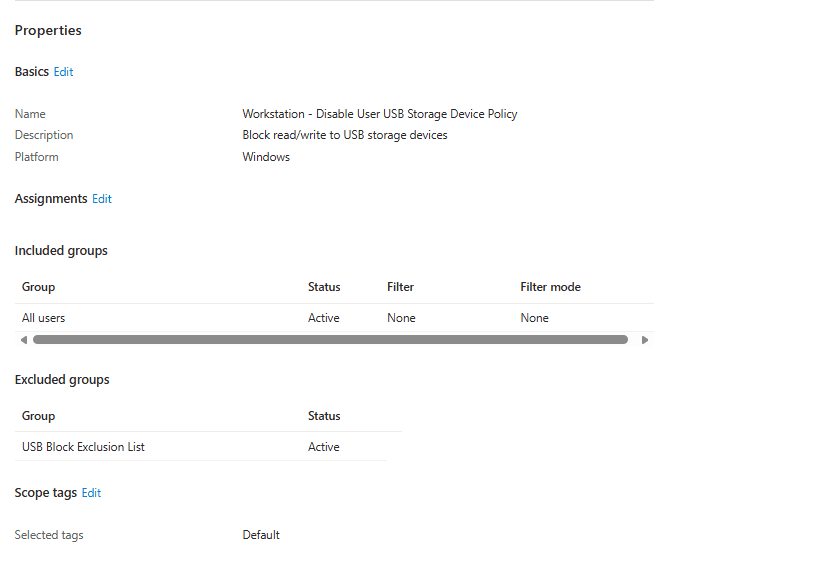
Enter a clear name and description for the policy on the Basics tab so the purpose is obvious later in reporting and review.
Step 5: Configure the USB Block Setting
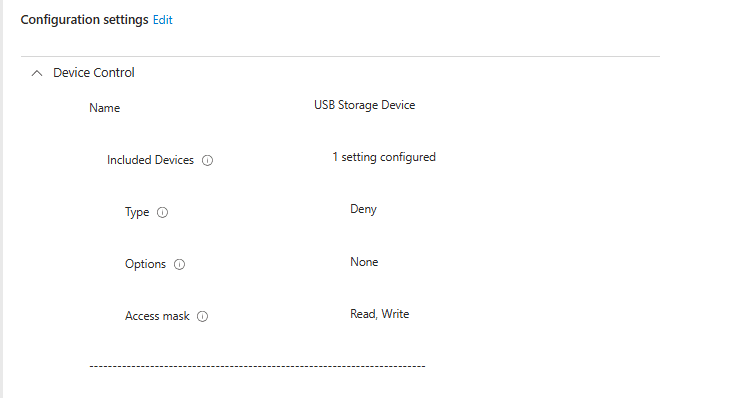
In the Configuration settings tab, look under Storage for Removable Disk: Deny Write Access.
Open the drop-down menu and set the value to Enabled.
Step 6: Assign the Policy
Click Next, then choose Add groups. Select the Entra security group containing the Windows devices that should receive the policy, then click Next.
Step 7: Review and Create
Review the deployment summary and select Create to publish the policy.
Verification Notes
After deployment, review the device and user check-in status to confirm the policy is applying successfully. In your example, the policy shows a healthy deployment result with successful check-ins and the USB storage device control configuration present under the policy settings.